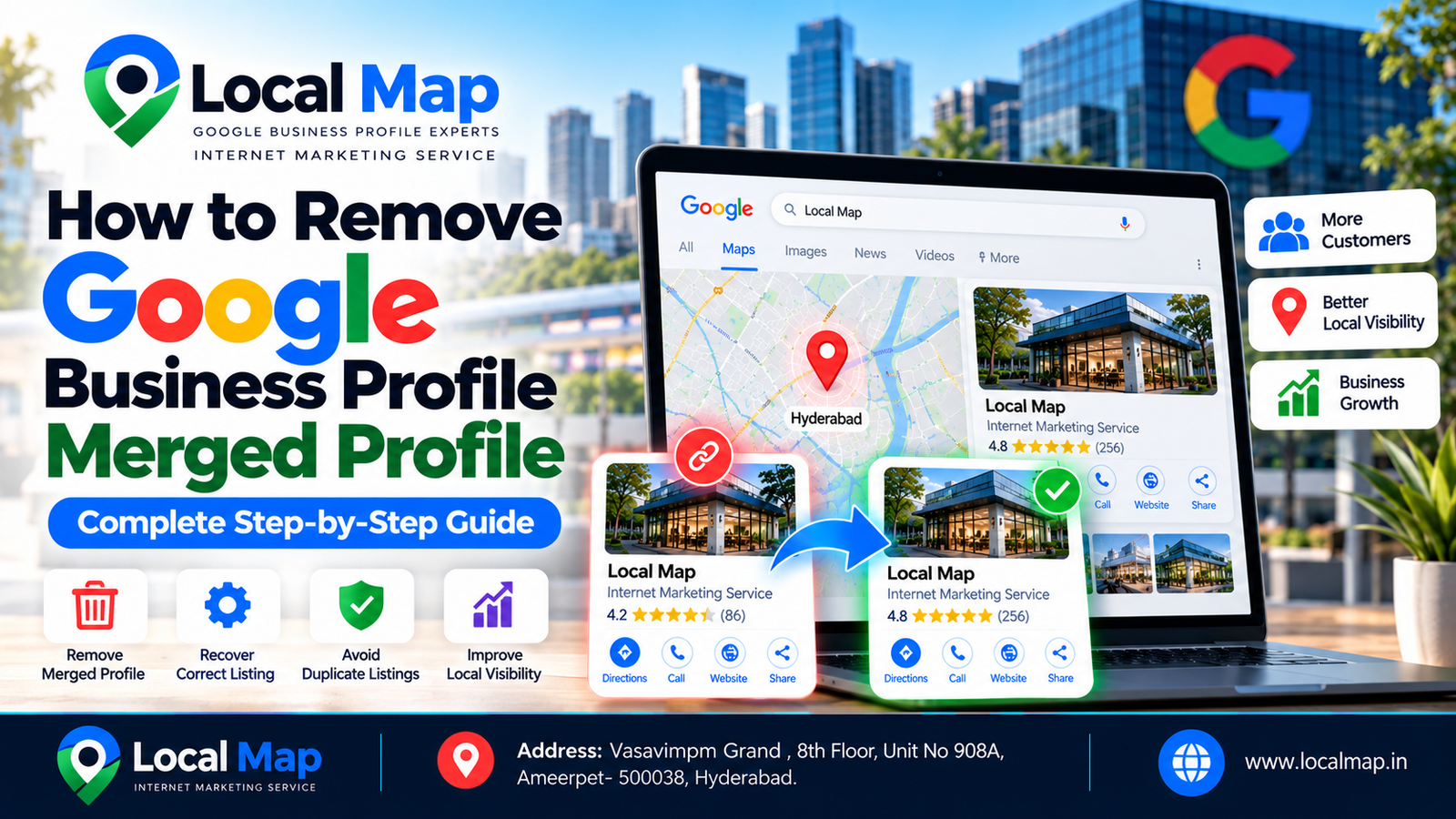
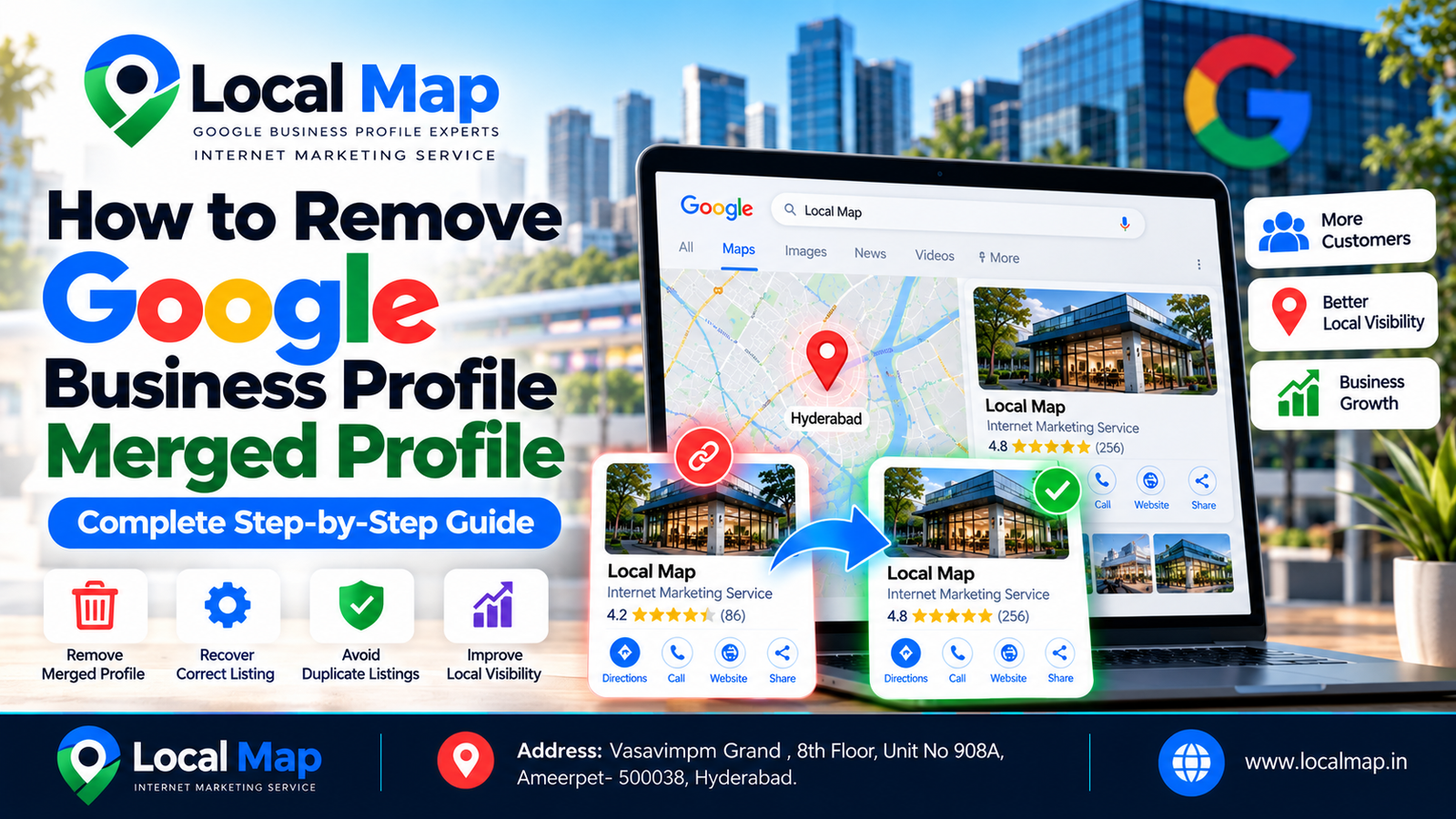
Have you accidentally merged two Google Business Profiles and now want to separate them? Is your original business listing no longer appearing correctly on Google Search or Google Maps after a merge? Or has Google combined information from two different business locations into one profile?
If you are facing any of these problems, you must understand that removing a merged Google Business Profile is different from deleting a normal business listing.
A completed Google Business Profile merge can affect business information, customer reviews, ownership, and the way a listing appears on Google. If two profiles have been merged incorrectly, you should investigate the situation carefully before making additional changes.
This guide explains how to remove a Google Business Profile merged profile step by step, how to identify an incorrect merge, how to contact Google Business Profile support, what evidence you should prepare, and what you can do if Google does not restore the original profiles.
Whether you are a business owner, local SEO specialist, or digital marketing agency, you must follow the appropriate process and avoid actions that could create more duplicate listings.
The most important point is that Google does not necessarily provide a self-service option to reverse a completed merge. You should contact Google through the appropriate support channel if you need a merged profile reviewed or corrected.
A merged Google Business Profile occurs when Google combines or treats two listings as representing the same business, or when information from one listing appears under another profile.
For example, a business owner may create two listings for the same office location. Google may identify them as duplicates and consolidate the information. In another situation, two separate businesses may appear to have been incorrectly combined.
If you want to learn How to Remove Google Business Profile Merged Profile, you must first understand the difference between a duplicate listing, an incorrect merge, and a missing profile.
A missing listing does not automatically mean that Google merged it. The problem could also involve account access, verification, suspension, or duplicate filtering.
You must first determine whether Google merged duplicate profiles belonging to the same business or incorrectly combined two separate businesses. If both profiles represent the same business, the appropriate solution is generally to resolve the duplicate and retain the correct listing. If two distinct, eligible businesses have been combined incorrectly, you should collect evidence and request a review through Google Business Profile support.
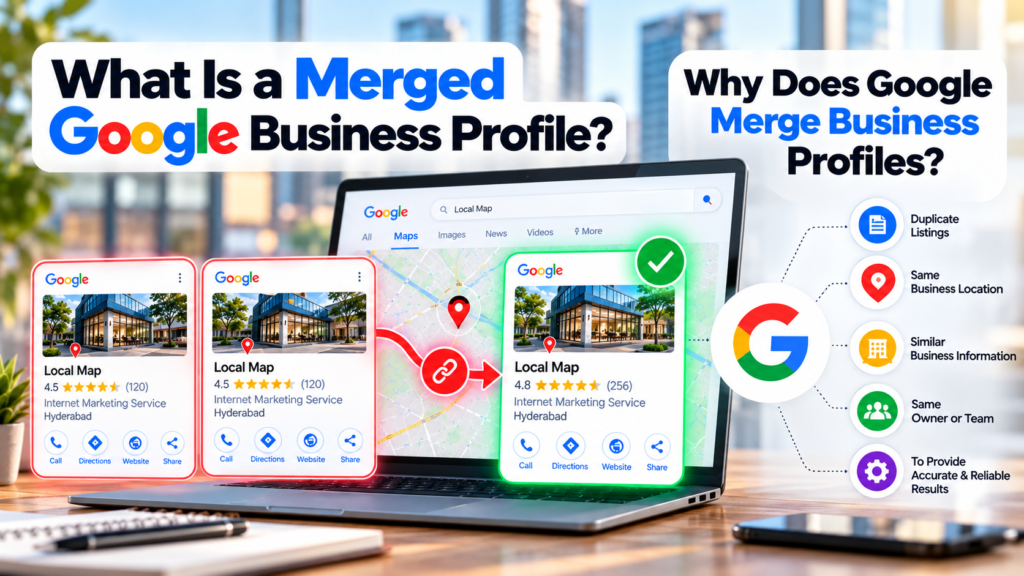
Google may identify duplicate profiles for several reasons:
Duplicate listings: The same business has multiple profiles for one location.
Business relocation: A new listing was created instead of updating the existing profile.
Incorrect business information: Similar names, addresses, or phone numbers cause confusion.
Previous agency activity: A former marketing agency created another listing.
Ownership changes: A new owner created a replacement profile without checking the existing listing.
Incorrect identification: Two separate businesses appear to have been associated incorrectly.
You should investigate the cause before attempting to remove a merged Google Business Profile. If both listings represent the same business, keeping one correct profile is generally the appropriate solution.
If two separate businesses have been incorrectly combined, you should collect evidence demonstrating that they operate independently and meet Google’s eligibility requirements.
Follow these steps to investigate and resolve the issue.
Step 1: Sign in to the correct Google account
Open Google and sign in with the account that manages your original Business Profile.
You must confirm that you are using the correct account because a missing listing may be related to ownership or access permissions rather than a merge.
Step 2: Search for both business listings
Search for the original business name and the name of the listing that appears to have replaced it.
Check Google Search and Google Maps. Record the business names, addresses, phone numbers, websites, and available profile links.
Step 3: Compare the business information
Compare the details of both listings. Determine whether they represent the same business or two genuinely different businesses.
If the names, addresses, and contact information are identical, investigate whether the listings are duplicates. Similar information alone does not prove that Google merged them.
Step 4: Check your Business Profile dashboard
Review the profiles available in your management account. Look for notifications, ownership changes, verification issues, or other information that might explain why the original listing is missing.
Step 5: Collect supporting evidence
Save screenshots of the affected listings and record the available Google Maps URLs. You should also collect accurate business information and supporting documents where relevant.
Step 6: Identify the correct solution
If both profiles represent the same business, follow Google’s duplicate-profile guidance. If two separate businesses have been combined incorrectly, prepare a request explaining why the listings should be reviewed.
Step 7: Contact Google Business Profile support
Visit the official Google Business Profile Help Center:
https://support.google.com/business/
Sign in, locate the relevant help topic, and use the available support options. Explain what happened and provide the affected profile links and evidence requested by Google.
Step 8: Check the outcome
Monitor your support correspondence and follow any instructions provided. After Google reviews the issue, check whether the business information is accurate.
You should not create another profile simply because the original listing has disappeared. Creating additional duplicates can make the problem more complicated.
You can start with the official Google Business Profile Help Center:
https://support.google.com/business/
Follow these steps:
Sign in to the Google account associated with your business.
Find the relevant help topic for duplicate profiles or incorrect business information.
Select an available support option if your situation requires assistance.
Explain whether the issue involves a duplicate listing, an incorrect merge, missing access, or incorrect business details.
Provide the profile URLs and supporting information requested.
Keep the support correspondence for future reference.
The available support options may vary. You should follow the current instructions displayed in your account rather than relying on outdated navigation steps.
Lorem ipsum dolor sit amet, consectetur adipiscing elit. Ut elit tellus, luctus nec ullamcorper mattis, pulvinar dapibus leo.
Business owners: Owners should normally investigate the problem and provide accurate business information.
Primary owners and owners: These users generally have broader profile-management permissions and can help resolve ownership-related issues.
Profile managers: Managers can perform many routine tasks, but they may not have access to every ownership-related feature.
Digital marketing agencies: Agencies can help clients collect evidence and prepare support requests when authorized. They must not make unauthorized changes or remove profiles without the client’s permission.
If you cannot access the original profile, you should follow Google’s official ownership-request process where applicable.
You should contact Google when you have identified a genuine issue that cannot be resolved through the available profile settings.
Two different businesses appear to have been combined.
The wrong business name or address appears on your listing.
Reviews or other profile information appear to be missing after a suspected merge.
The original profile is no longer accessible.
Duplicate listings remain unresolved after following Google’s guidance.
If the profiles represent the same business, you should identify the correct listing to retain.
If the businesses are separate, you must explain their independent identities and provide relevant evidence. Sharing an address does not automatically make two businesses eligible for separate profiles; each must meet Google’s guidelines.
Google does not charge a standard fee for submitting a support request about a merged Business Profile.
However, a digital marketing agency or local SEO consultant may charge for auditing listings, collecting evidence, or preparing a support request.
You should be cautious of anyone promising guaranteed profile separation, guaranteed review restoration, or guaranteed approval in exchange for payment. Google determines the outcome based on its guidelines and the circumstances of the case.
The time required depends on the complexity of the problem and whether Google needs to investigate the affected listings.
A straightforward duplicate issue may be easier to resolve than an incorrect merge involving two separate businesses, missing ownership access, or conflicting business information.
Google may also need time to review submitted evidence and update the listing after a correction.
You should not assume that every merged profile can be separated within a fixed number of hours or days. Provide accurate information, respond to legitimate requests, and monitor the support case.
Missing reviews can be a concern when you are trying to understand How to Remove Google Business Profile Merged Profile issues.
First, open the current listing in Google Search and Google Maps. Check whether the reviews are missing entirely or whether they appear under another listing.
Next, compare the affected profiles and save screenshots showing the problem. Record the relevant profile URLs and any available information about the previous listing.
Contact Google Business Profile support and explain that reviews appear to be missing after a suspected merge.
You should ask Google to investigate, but you must not assume that every review can be transferred or restored. Do not create fake reviews or ask customers to post duplicate reviews to replace missing ones.
A missing listing does not automatically mean that Google deleted or merged it.
You should:
(1) Search for your business in Google Search and Google Maps.
(2) Sign in to the account that previously managed the profile.
(3) Check for emails or notifications from Google.
(4)Compare any remaining listings for matching business details.
(5) Review the available ownership and duplicate-profile guidance.
(6) Contact support if you cannot determine the cause.
You must investigate the original profile before creating a replacement listing. Otherwise, you may accidentally create another duplicate.
If two separate businesses have been incorrectly combined, you should prepare evidence demonstrating that they are independent and eligible for separate profiles.
Useful evidence may include separate business websites, accurate contact details, permanent signage where applicable, relevant registration documents, and photographs of the premises.
Contact Google through the official Help Center and explain exactly what information is incorrect. Include the affected profile links and describe how the businesses differ.
You must provide genuine evidence and accurate business information. Google will determine whether the profiles can be separated based on the applicable guidelines.
If you cannot access the original listing, check which Google account previously managed it. If another owner or agency controls the profile, request access through the appropriate process.
If you are the legitimate business owner, follow Google’s official ownership-request guidance.
You should not create a new profile simply because another account manages the original listing. Resolving ownership is often more appropriate than creating another listing.
When learning How to Remove Google Business Profile Merged Profile, you should avoid these mistakes:
Deleting a profile without investigating: Identify the actual issue first.
Creating a new listing immediately: You must check whether the original profile can be recovered or corrected.
Assuming similar names prove a merge: Compare the listings and investigate other possible causes.
Trying to separate ineligible profiles: Two names for the same business do not automatically justify separate listings.
Submitting incomplete evidence: Provide accurate profile links and relevant business information.
Providing false documents: You must never fabricate evidence.
Expecting guaranteed review recovery: Google determines how reviews are handled.
Ignoring ownership permissions: Confirm who manages the affected profiles.
Making unnecessary edits: You should change only information that accurately reflects the business.
Paying for guaranteed results: No third party can guarantee Google’s decision.
Before submitting a support request, complete this checklist:
Confirm the original profile and the other listing involved.
Determine whether the profiles represent the same business or separate businesses.
Record the available profile URLs.
Check your account permissions.
Review Google’s Business Profile guidelines.
Collect relevant screenshots and supporting documents.
Clearly explain the incorrect information.
Request the appropriate correction through the official support process.
Keep the support correspondence.
Avoid creating additional duplicate profiles.
You should complete these steps to help Google understand the problem and evaluate the appropriate solution.
Identify the affected listings, compare their details, confirm whether they represent the same business, collect supporting evidence, and contact Google support if the merge appears incorrect. Follow Google’s instructions for the specific situation.
There is no universal self-service option for reversing every merge. You should use the available profile-management options for straightforward issues and contact Google when the problem requires further review.
Google may identify two listings as duplicates if they appear to represent the same business. You must investigate the listings before assuming that a merge occurred.
You can request a review if both businesses are distinct and eligible for separate profiles. You should provide accurate business information and supporting evidence.
Review visibility may change when listings are merged or corrected. You should document missing reviews and contact Google for assistance, but restoration is not guaranteed.
Google does not charge a standard fee for a support request. Third-party consultants may charge for professional assistance.
You should investigate the original listing first. Creating a replacement without understanding the issue may cause duplicate-profile problems.
Understanding How to Remove Google Business Profile Merged Profile is essential for business owners and local SEO professionals who need to correct duplicate listings or resolve incorrectly combined business information.
You must first determine whether Google combined duplicate profiles for the same business or incorrectly associated two separate businesses. If the profiles are duplicates, you should follow Google’s duplicate-profile guidance. If two distinct, eligible businesses have been combined incorrectly, collect evidence and request a review through Google Business Profile support.
You should verify ownership, document the affected listings, and provide accurate business information. You must not create additional profiles or make misleading changes simply to reverse a merge.
Following the correct process helps you avoid unnecessary listing problems and gives Google the information needed to assess your request.