How to Remove Google Business Profile Disable Complete Guide

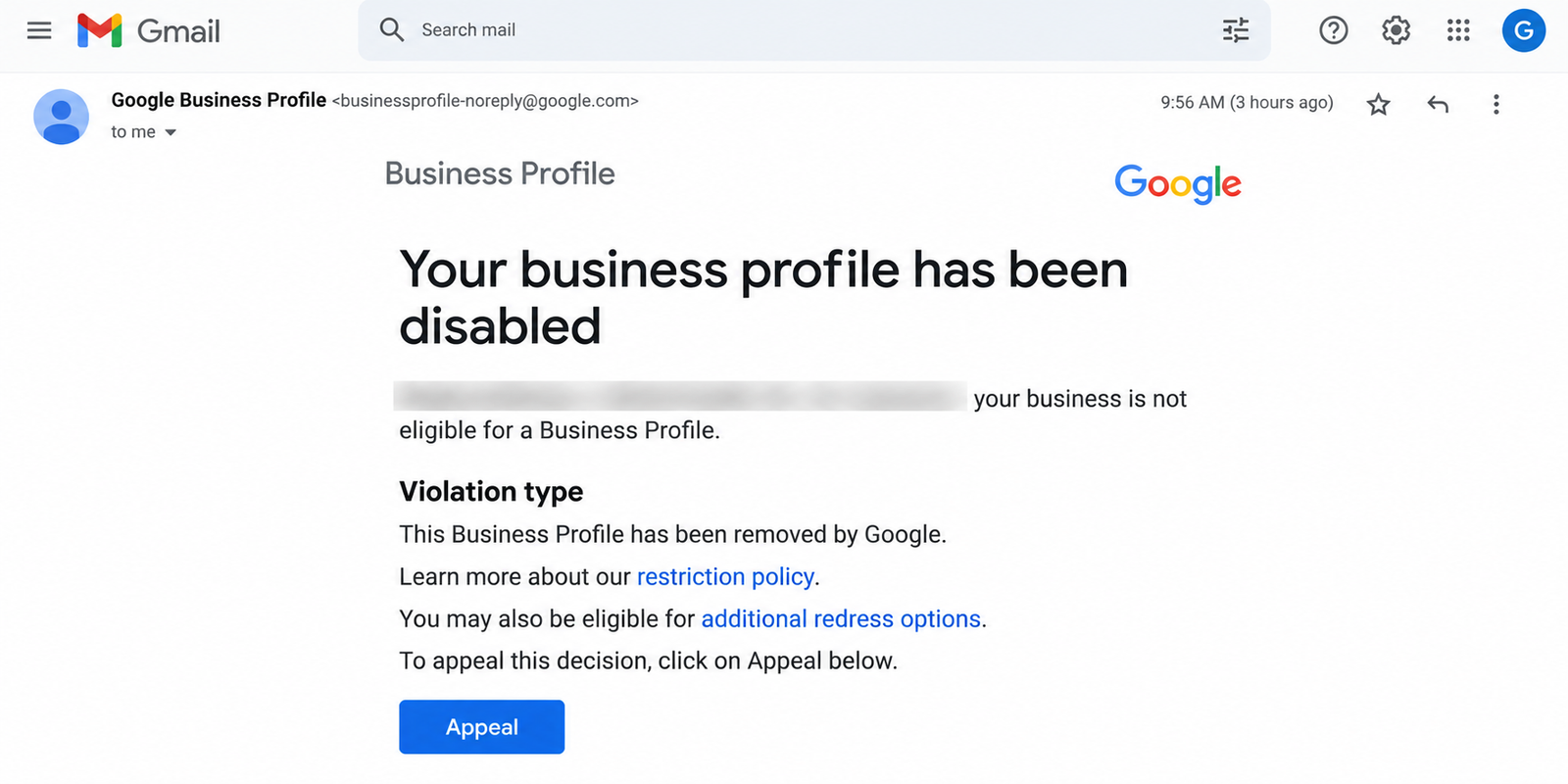
Your Buisness Profile Has Been Disabled

Google Business Profile is an important tool for businesses that want to appear on Google Search and Google Maps. It helps customers discover business locations, contact details, opening hours, services, photos, and reviews. However, business owners sometimes need to remove a Google Business Profile, disable their access, hide a listing, or resolve a disabled or suspended profile.

If you are searching for how to remove Google Business Profile disable step by step, you must first understand what happened to your profile and what you want to achieve. Removing a profile from your account, marking a business permanently closed, and appealing a Google Business Profile suspension are different processes.

This complete guide explains the available options, step-by-step instructions, common mistakes, eligibility requirements, and solutions for different situations.

Whether you are a small business owner, digital marketing professional, agency, or local SEO specialist, you should follow the correct process before making changes to your Google Business Profile.

What Is Google Business Profile Removal or Disabling?

Google Business Profile is a free platform that allows eligible businesses to manage their information on Google Search and Google Maps.

A business owner may want to remove or disable a profile for several reasons, including business closure, duplicate listings, incorrect ownership, relocation, unwanted access, or a Google suspension.

However, removing a profile from your account does not automatically guarantee that the business listing will disappear from Google Search and Google Maps.

Before taking action, you must identify which of the following situations applies to your business.

Why Do Business Owners Want to Remove a Google Business Profile?

There are several reasons why business owners may want to remove a Google Business Profile.

  1. Business closure: The business has permanently stopped operating.

  2. Duplicate listing: Two or more profiles represent the same business.

  3. Incorrect ownership: The profile belongs to a previous owner or agency.

  4. Business relocation: The business has moved to another address.

  5. Privacy concerns: The owner wants to remove personal or incorrect information.

  6. Suspension: Google has disabled or suspended the profile.

  7. Marketing changes: The business no longer wants to manage its profile.

  8. Incorrect business details: The listing contains information that needs correction.

  9. Agency access removal: A business wants to stop working with a former marketing agency.

  10. Permanent business closure: The business no longer qualifies for an active listing.

You should not remove a profile without understanding the consequences. For example, if your profile is suspended, removing it may not solve the underlying problem or restore your business’s visibility.

How to Remove a Google Business Profile Step by Step

If you are the verified owner and want to remove a Business Profile from your management account, follow these steps.

Step 1: Sign in to the correct Google account

Open Google in your browser and sign in using the Google account that manages the business profile.

You must use the correct account because a business profile may be managed by multiple owners, managers, or agencies.

Step 2: Open your Business Profile

Search for your business name on Google while signed in to the relevant account. You can also open Google Search or Google Maps and access the business management options available to you.

Step 3: Select the correct business

If you manage multiple businesses, select the profile you intend to remove.

You should double-check the business name and location before proceeding. Removing the wrong profile may cause unnecessary access and management problems.

Step 4: Open the Business Profile settings

Open the profile management menu and navigate to the settings section.

Depending on the interface available to your account, the options may appear under Business Profile settings, People and access, or another management menu.

Step 5: Find the removal option

Look for the option labelled Remove Business Profile or a similarly named option in the current interface.

Google may display different options depending on your ownership status, profile eligibility, and the interface being used.

Step 6: Review the removal choices

Read the information displayed before continuing. Google may offer an option to remove profile content and managers.

This action is different from marking a business permanently closed. You must understand which action you are selecting.

Step 7: Confirm the removal

If you are certain that you want to remove the profile and its management access, follow the on-screen instructions and confirm your choice.

You should not proceed if your actual objective is to restore a suspended profile, transfer ownership, or correct a business address.

Step 8: Check your account

After completing the process, verify whether the profile remains accessible through your management account.

Remember that removing profile content and managers does not guarantee that Google will remove every public reference to the business from Search or Maps.

Where Can You Find the Google Business Profile Removal Settings?

You can normally access profile management through Google Search or Google Maps while signed in to the account that manages the business.

The general navigation is:

Google Search → Your Business Profile → Settings → Remove Business Profile

The exact wording and menu placement may change as Google updates its interface.

If you cannot find the removal option, you should confirm that you are signed in to the correct account and have the required permissions.

You must not assume that a missing option means your profile has been disabled. It could indicate that you are using the wrong account, lack owner permissions, or are viewing a different version of the management interface.

Who Can Remove or Manage a Google Business Profile?

Not every Google account has permission to remove a business profile. Your access level determines which actions you can perform.

Which Users Have Permission to Remove a Business Profile?

Primary owners and owners: Owners generally have the permissions needed to manage major profile settings and ownership-related actions. Some actions may be restricted by Google’s policies or account conditions.

Managers: Managers can perform many routine management activities, but they may not have permission to remove the profile or perform every ownership-related action.

Agency representatives: A marketing agency may manage a profile if the business owner has granted it the appropriate access. The agency should follow the owner’s instructions and must not remove the profile without authorization.

Former employees: Former employees may retain access if the business has not updated its permissions. The current owner should review the People and access settings and remove unauthorized users.

If you cannot complete a removal action, you should check your role and ask the primary owner to perform the action when necessary.

When Should You Remove a Google Business Profile?

You should choose the correct action based on the current business situation.

  • When the business has permanently closed: Mark the profile as permanently closed when appropriate. This communicates the closure to customers.

  • When the business has relocated: Update the existing profile’s address if the business remains eligible. Do not automatically create a new profile.

  • When the listing is a duplicate: Follow Google’s duplicate-profile guidance and report the duplicate where appropriate.

  • When an agency no longer works with you: Remove the agency’s access instead of deleting the business profile.

  • When the profile is suspended: Review the suspension notice and use Google’s reinstatement or appeals process.

  • When you no longer want to manage the listing: Consider removing your account’s access, transferring ownership, or removing the profile through the available settings.

You must identify the correct reason before taking action. Removing a profile is not always the best solution.

How Much Does It Cost to Remove a Google Business Profile?

Google does not charge a fee for standard Business Profile management actions, such as removing your own management access or updating eligible business information.

You should not need to pay Google to submit a legitimate suspension appeal.

However, if you hire a digital marketing agency or local SEO consultant, that provider may charge a professional service fee for auditing the profile, correcting policy violations, preparing evidence, or managing the appeal process.

You must be careful with anyone who guarantees reinstatement or promises to remove a suspension for a guaranteed payment. No third-party service can legitimately guarantee Google’s decision.

How Long Does Google Business Profile Removal Take?

The time required depends on the action you choose.

Removing a profile from your management account may take only a few minutes if you have the necessary permissions and the interface allows the action.

Changes to public business information may take additional time to appear. Google may review certain edits before publishing them.

A permanently closed status may also take time to appear consistently across Google’s services.

Suspension appeals are different. Google reviews the submitted information, and the processing time can vary. You should follow the status displayed in Google’s appeals process rather than relying on an assumed fixed timeline.

You must not submit repeated appeals simply because a decision is taking longer than expected. Instead, review the status, check for requests for additional information, and follow the official instructions.

What If Your Google Business Profile Is Disabled or Suspended?

If your profile has been disabled or suspended, you should not treat removal as the solution.

A disabled or suspended profile may be restricted because Google believes that it does not comply with Business Profile guidelines. The reason can involve business eligibility, address problems, business-name formatting, misleading information, or other policy concerns.

The correct approach is to investigate the restriction and request reinstatement when appropriate.

Step 1: Identify the restriction

Sign in to the Google account associated with the profile and review any notification, email, or message explaining the restriction.

Determine whether the profile is suspended, disabled, unverified, inaccessible, or simply not visible in Search and Maps. These conditions are not necessarily the same.

Step 2: Review Google’s Business Profile guidelines

Read the official guidelines at:

https://support.google.com/business/answer/3038177

You must check whether the business meets Google’s eligibility requirements. For example, a business generally must have in-person contact with customers during its stated operating hours to qualify. Online-only businesses that do not meet the requirements are generally ineligible.

Step 3: Audit your business information

Review your business name, address, service area, phone number, website, categories, and other profile details.

Your business name must reflect the real-world name used consistently on signage, business documents, and other legitimate business materials. You should not add unnecessary keywords to the business name to manipulate rankings.

Step 4: Correct policy violations

Fix any genuine problems you identify. Remove misleading details, correct inaccurate addresses, and ensure the business meets the eligibility requirements.

You should make only necessary and accurate changes. Do not create false documents or change business information simply to make the profile appear eligible.

Step 5: Prepare supporting evidence

Depending on the circumstances, useful evidence may include:

  • Business registration documents.

  • Relevant licences or permits.

  • Photographs of permanent business signage.

  • Photographs showing the business premises.

  • Utility bills or other documents supporting the address.

  • Other legitimate documents requested by Google.

The evidence must accurately represent the business. The documents you provide should match the business information and support the specific issue under review.

Step 6: Submit the reinstatement appeal

Use Google’s official Business Profile appeals process:

https://support.google.com/business/workflow/13569690

Follow the instructions shown for your account and select the relevant profile or restriction.

Explain the situation clearly, describe the corrections you made, and provide the requested evidence. You should avoid lengthy, emotional explanations that do not address the policy concern.

Step 7: Wait for Google’s decision

Monitor the appeal status and respond to any legitimate request for additional information.

You must not create a replacement profile to bypass the suspension. Duplicate profiles can introduce further eligibility or policy issues.

Step 8: Follow the outcome

If Google reinstates the profile, check that the business information is accurate.

If the appeal is unsuccessful, review the decision and any available next steps. You should not repeatedly submit identical appeals without addressing the underlying issue or following the instructions provided.

What Is the Difference Between Removing, Closing, and Disabling a Google Business Profile?

These actions have different purposes, so you should select the one that matches your situation.

ActionWhat it meansWhen to use it
Remove profile content and managersRemoves specified profile content and management access associated with the actionWhen you intentionally want to remove the profile from your management setup
Mark permanently closedCommunicates that the business has permanently stopped operatingWhen the business has genuinely closed
Remove a managerRevokes a particular user’s management accessWhen an employee or agency should no longer manage the profile
Transfer ownershipChanges who controls the profileWhen a business changes ownership or management responsibility
Correct a duplicateAddresses an additional profile representing the same businessWhen duplicate listings exist
Appeal a suspensionRequests Google to reconsider a profile restrictionWhen a legitimate business profile has been suspended or disabled

What Should You Do Before Removing Your Google Business Profile?

S. No.

Checklist Item

What You Should Do

Why It Is Important

1

Confirm Ownership

Sign in to the Google account that manages the correct business profile.

Ensures you are managing the right listing with the appropriate permissions.

2

Identify Your Objective

Decide whether you want to remove your access, close the business, remove a duplicate listing, or appeal a suspension.

Helps you choose the correct process and avoid unintended changes.

3

Review Business Information

Verify the business name, address, phone number, website, and other profile details.

Helps identify incorrect information that may need to be corrected.

4

Check Other Owners

Review the profile’s owners and managers and determine who should retain access.

Prevents accidental loss of access for people who still need to manage the profile.

5

Consider the Effect on Customers

Check whether customers rely on the listing for directions, opening hours, contact details, or reviews.

Helps you understand how changes may affect customers and your online visibility.

6

Preserve Important Records

Save relevant business information, communications, and documents needed for future administration or an appeal.

Makes it easier to manage future changes or provide supporting evidence.

7

Read the Confirmation Screen

Review Google’s warnings and understand the consequences before confirming an action.

Reduces the risk of accidentally removing information or access you want to retain.

8

Follow Official Google Guidance

If your profile is restricted or suspended, consult Google’s official support and appeal resources.

Helps you follow the appropriate process for resolving profile restrictions.

What If You Cannot Remove Your Google Business Profile?

If you cannot find the removal option or the process fails, investigate the cause before trying alternative actions.

What If You Do Not Have Owner Access?

You should sign in with the Google account that has the necessary permissions. If another person owns the profile, ask that person to grant you appropriate access or complete the action.

If you are the legitimate business owner but cannot access the profile, follow Google’s official ownership-request process where applicable.

Do not create a duplicate profile simply because you cannot access the original listing.

What If the Business Profile Is Not Visible on Google Search?

A profile may be missing from Search or Maps for several reasons, including verification problems, changes under review, eligibility concerns, suspension, or ranking fluctuations.

You must determine whether the profile has been suspended or whether it is simply not appearing prominently.

Check the management account, review any notifications, and verify the business information. If a suspension is confirmed, use the official appeal process.

What If Google Has Rejected Your Appeal?

If Google rejects an appeal, you should read the decision and review whether the submitted evidence addressed the underlying issue.

You may need to provide additional evidence through an available follow-up process or correct unresolved policy violations before taking any further permitted action.

You must not create a new listing to bypass an unsuccessful appeal. Doing so may complicate the situation and create additional policy concerns.

What If You Want to Remove a Duplicate Business Profile?

First, confirm that both listings represent the same business and location.

If the profiles are duplicates, follow Google’s official duplicate-profile guidance and use the appropriate reporting or support process. If the business has moved, update the existing profile where appropriate rather than creating another listing unnecessarily.

You should not remove a legitimate profile that belongs to a different business or location.

What If You Want to Remove an Agency or Former Employee?

Open the profile’s people and access settings and review the users who have permission to manage it.

If you are an authorized owner, remove the relevant manager or agency account according to the available options. If ownership must be transferred, follow the official ownership-transfer process.

You should retain appropriate owner access and ensure that the business remains under the control of an authorized representative.

Common Mistakes to Avoid When Removing a Google Business Profile

Business owners sometimes make changes that create additional problems. You should avoid the following mistakes.

Mistake 1: Removing a profile to fix a suspension. Removing a profile is not a substitute for a reinstatement appeal.

Mistake 2: Creating another profile immediately. Duplicate listings can create additional policy problems and confuse customers.

Mistake 3: Using an incorrect business name. Your profile name must accurately represent your real-world business name.

Mistake 4: Providing false evidence. You must not submit altered documents, fabricated photographs, or inaccurate business information.

Mistake 5: Removing the wrong listing. If you manage multiple locations, verify the correct business before confirming any action.

Mistake 6: Confusing a closed business with a removed profile. Marking a business permanently closed and removing profile content are different actions.

Mistake 7: Paying for guaranteed reinstatement. No third party can guarantee that Google will approve an appeal.

Mistake 8: Ignoring account permissions. You should check your ownership role before assuming that a profile has been disabled.

Mistake 9: Making unnecessary edits during an appeal. You should correct genuine violations, avoid unrelated changes, and provide consistent evidence.

Mistake 10: Assuming that removal erases every public reference. Information about a business may remain visible through other sources or be supplied by users and third parties.

Official Google Business Profile Resources

You should use official Google documentation when managing, removing, or appealing a Business Profile.

The available options may change as Google updates its systems. You should follow the current instructions shown in your account and the official help resources.

Frequently Asked Questions

1. How do I remove a Google Business Profile step by step?

Sign in to the Google account that manages the business, open the correct profile, access its settings, select the available removal option, review the consequences, and confirm only if the action matches your objective.

2. Can I remove a disabled Google Business Profile?

You may have some management options available, depending on the restriction and your permissions. However, removing a disabled profile does not resolve the suspension. If your eligible business profile has been suspended, you should review the guidelines and follow the official appeal process.

3. Will removing a Google Business Profile delete it from Google Maps?

Not necessarily. Removing profile content and managers from your account does not guarantee that the business listing will disappear from Google Search or Maps. Google may continue to display information obtained from other sources.

4. How do I permanently close my Google Business Profile?

If the business has genuinely stopped operating permanently, open the profile management options and select the appropriate option to mark the business permanently closed. Check the current interface for the exact wording.

5. Can I remove a Google Business Profile without owner access?

You may not have permission to perform owner-level actions. You should request the appropriate access from the current owner or follow Google’s official ownership-request process if you are the legitimate business owner.

6. Does Google charge money to remove a Business Profile?

Google does not charge a fee for standard profile management actions. A third-party agency may charge for professional assistance, but you should be cautious of anyone promising guaranteed removal of a suspension.

7. How long does it take to remove a Google Business Profile?

The time depends on the action, your permissions, and whether Google needs to process or review the change. Some account actions can be completed quickly, while changes to public information may take longer to appear.

8. Should I delete my Google Business Profile if my business is moving?

Usually, you should update the existing profile with the new address if the business remains eligible and the move is legitimate. You should not automatically delete the profile or create a duplicate listing.

9. Can I create a new Google Business Profile after suspension?

You should not create a new profile to bypass a suspension. You must address the underlying issue and follow Google’s official reinstatement process.

10. What is the safest way to remove a Google Business Profile?

The safest approach is to identify your objective, verify your permissions, review Google’s guidelines, understand the consequences, and select the correct action. If your profile is suspended, use the official appeal process instead of attempting to bypass the restriction.